
Ultimate Guide to Azure Site Recovery Workloads
Overview of ASR replication scenarios, supported workloads, implementation best practices and cost optimisation for SMB disaster recovery.

Azure Site Recovery (ASR) is a cloud-based disaster recovery service that helps protect critical workloads by replicating data to an Azure region or on-premises location. It supports various environments, including Azure VMs, Hyper-V, VMware, and physical servers, offering recovery point objectives (RPO) as low as 30 seconds for some setups.
Key highlights of ASR:
- Replication Scenarios: Azure-to-Azure, on-premises to Azure (Hyper-V, VMware), and physical servers to Azure.
- Supported Applications: Microsoft tools like SQL Server, Active Directory, and SharePoint, along with custom and third-party apps.
- Automation: One-click failover, recovery plans, and integration with Azure Traffic Manager.
- Cost Efficiency: Pay only for protected VMs and compute during failover or testing, with the first 31 days free for new instances.
ASR simplifies disaster recovery with automated replication, testing, and failover while reducing the need for a secondary data centre. It also supports multi-tier applications with consistent failover plans. For small and medium-sized businesses, ASR offers a cost-effective way to ensure business continuity.
Azure Site Recovery | A Complete Guide to Azure Disaster Recovery (ASR)
sbb-itb-6ec400b
Workload Replication Scenarios
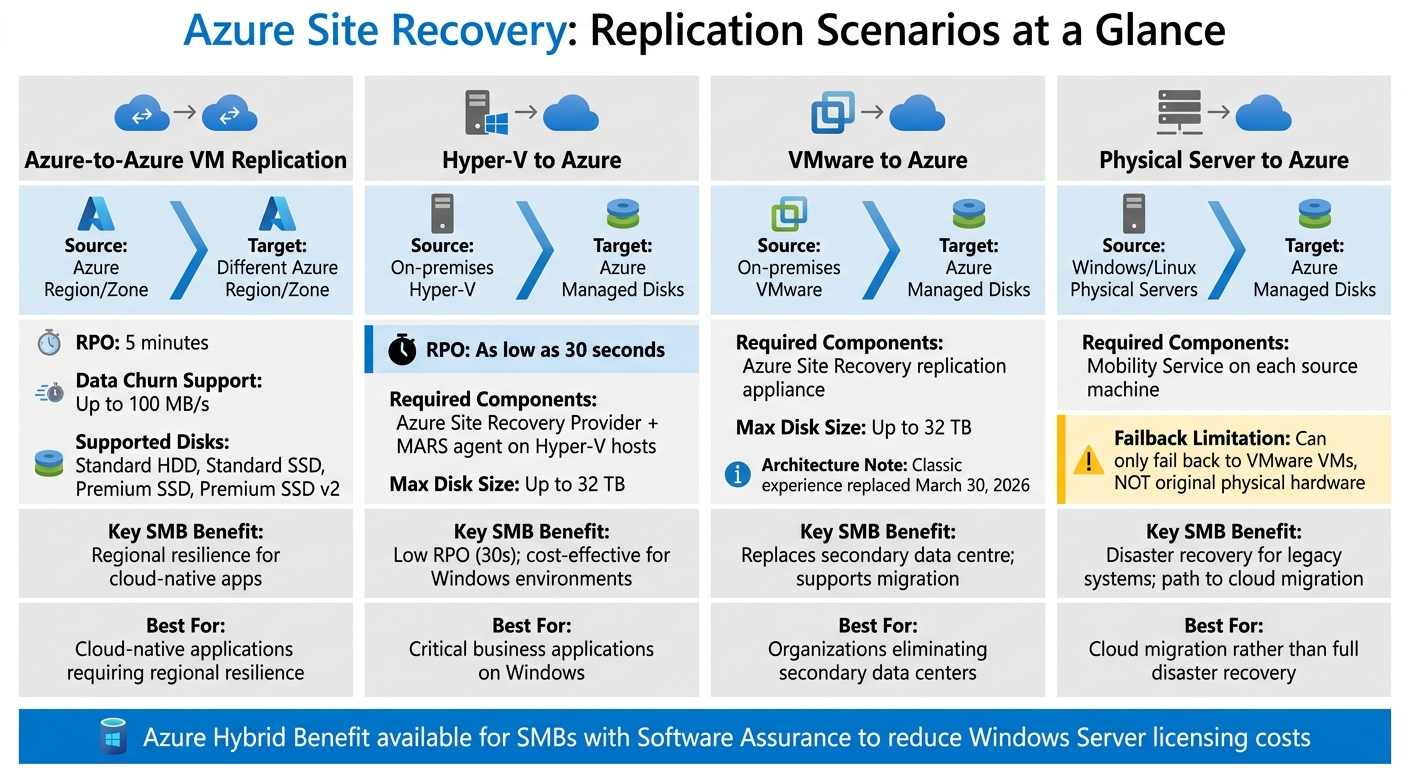
Azure Site Recovery Workload Replication Scenarios Comparison
Azure Site Recovery (ASR) offers three main replication scenarios to suit different environments. Choosing the right one ensures effective disaster recovery tailored to your needs. Here's a breakdown of each option.
Azure-to-Azure VM replication is designed for workloads already hosted in Azure, enabling replication across regions or within Availability Zones in the same region. This is particularly useful for small and medium-sized businesses (SMBs) running cloud-native applications that demand regional resilience. ASR supports managed disks like Standard HDD, Standard SSD, Premium SSD, and Premium SSD v2. By default, it creates crash-consistent recovery points every five minutes and can handle data churn rates of up to 100 MB/s for I/O-intensive workloads.
On-premises to Azure replication allows businesses to use Azure as their recovery site, eliminating the need for a secondary physical data centre. For Hyper-V environments, the Azure Site Recovery Provider and MARS agent are used on Hyper-V hosts. Hyper-V setups can achieve recovery point objectives (RPO) as low as 30 seconds, making it ideal for critical business applications. VMware environments, on the other hand, require the Azure Site Recovery replication appliance for discovery and orchestration. Note that as of 30 March 2026, the "Classic" experience has been replaced with a modernised architecture. Both Hyper-V and VMware scenarios support data disks up to 32 TB.
Physical server replication supports older systems by enabling replication or migration to Azure. This applies to both Windows and Linux physical servers, which require the Mobility Service to be installed on each source machine. However, there’s a key limitation: while Hyper-V and VMware VMs can fail back to their original infrastructure, physical servers that fail over to Azure can only fail back to VMware VMs - not to their original physical hardware. This makes physical server replication more suitable for cloud migration rather than full disaster recovery.
| Scenario | Source Environment | Target Environment | Key SMB Benefit |
|---|---|---|---|
| Azure-to-Azure | Azure Region/Zone | Different Azure Region/Zone | Regional resilience for cloud-native apps |
| VMware to Azure | On-premises VMware | Azure Managed Disks | Replaces a secondary data centre; supports migration |
| Hyper-V to Azure | On-premises Hyper-V | Azure Managed Disks | Low RPO (30s); cost-effective for Windows environments |
| Physical to Azure | Windows/Linux Physical | Azure Managed Disks | Disaster recovery for legacy systems; path to cloud migration |
For SMBs with Software Assurance, the Azure Hybrid Benefit can help reduce Windows Server licensing costs when using ASR.
Supported Application Workloads
Microsoft Applications
Azure Site Recovery (ASR) supports the replication of any workload on a compatible machine, offering tailored integrations for Microsoft's application ecosystem.
Active Directory (AD) and DNS are critical for enterprise applications. ASR ensures AD and DNS are prioritised during failover in recovery plans, enabling dependent applications like SharePoint and SAP to function seamlessly after recovery.
SQL Server integrates smoothly with ASR, covering both standalone servers and clusters. It works with SQL Server Always On Availability Groups, allowing organisations to manage failover and failback directly within ASR recovery plans.
SharePoint replication spans the entire farm, including web, application, and database tiers. This eliminates the need for maintaining an expensive standby farm, as updates at the primary site are automatically replicated - a practical solution for businesses managing collaboration platforms.
For Exchange, ASR supports standalone servers for smaller setups. In larger deployments, Exchange Database Availability Groups (DAGs) are integrated to ensure efficient failover management.
Dynamics AX environments are fully protected, with ASR replicating the web layer, Application Object Server (AOS), and database tiers, along with any linked SharePoint components.
Internet Information Services (IIS) replication covers both web servers and databases. Recovery plans can include scripts to update application mappings, bindings, and DNS entries after a failover.
Remote Desktop Services (RDS) supports replication of remote applications and desktop sessions. However, pooled virtual desktops can only be replicated to secondary sites, not directly to Azure.
It’s important to note that Citrix XenApp and XenDesktop workloads are no longer supported by ASR, with support ending in March 2020.
| Workload | Azure-to-Azure | Hyper-V to Azure | VMware to Azure | Key Consideration |
|---|---|---|---|---|
| Active Directory / DNS | Yes | Yes | Yes | Foundation for dependent applications |
| SQL Server | Yes | Yes | Yes | Integrates with Always On Availability Groups |
| SharePoint | Yes | Yes | Yes | Replicates entire farm (web, app, database) |
| Exchange | Yes | Yes | Yes | Integrates with DAGs for large deployments |
| Dynamics AX | Yes | Yes | Yes | Replicates web, AOS, and database tiers |
| IIS | Yes | Yes | Yes | Use scripts to update environment variables |
| Citrix XenApp/XenDesktop | No | No | No | Support ended in March 2020 |
ASR also extends its protection to custom and third-party applications, ensuring consistent recovery across diverse environments.
Custom and Third-Party Applications
ASR is designed to safeguard both custom and third-party applications running on Windows or Linux. By using application-consistent snapshots, ASR captures in-memory data and active transactions, ensuring that applications recover in a functional state rather than at a crash-consistent point.
For multi-tier applications, Recovery Plans are essential. These plans enable one-click failover and allow for the integration of custom scripts or manual actions to sequence the startup of application layers. For example, they ensure the database is brought online before the application server, and the application server before the web server. Organisations can also use Azure Automation runbooks to handle post-failover tasks, such as updating DNS records or modifying application IP bindings.
For Linux workloads, custom bash scripts can be employed to pause and resume I/O during snapshots, using the "--pre" and "--post" options. These scripts help achieve application consistency, but it’s vital to understand how licensing and failback constraints might apply. ASR does not support Docker workloads or Ephemeral Disks, which must be excluded from replication.
Additionally, Azure does not retain persistent MAC addresses, which can impact some legacy licensing models. The change in a VM's UUID during failover also requires verification to ensure third-party licences remain valid.
ASR offers the first 31 days of protection free for new instances. However, charges for Azure Storage, storage transactions, and data transfers still apply during this period. Compute charges are only incurred when virtual machines are running in Azure during a failover or disaster recovery drill.
Implementation Best Practices
Preparations and Prerequisites
To set up Azure Site Recovery (ASR), you'll need an active Azure subscription, a Virtual Network (VNet) in your target region, and a storage account. While standard storage is fine for most situations, environments with high data churn should opt for premium storage. The account used for deployment must have Site Recovery Contributor permissions for ASR tasks and Virtual Machine Contributor permissions to handle VM creation during failover.
Ensure outbound port 443 is accessible by using service tags such as AzureSiteRecovery, Storage, and AzureActiveDirectory. For on-premises servers, the Mobility service requires a root or administrative account for automated installation. Meanwhile, Azure VMs automatically receive this service as an extension when replication is enabled.
Running the Azure Site Recovery Deployment Planner during periods of normal data churn helps determine network bandwidth needs, storage capacity, and VM compatibility. The tool includes a default 30% growth buffer to help with long-term planning. Additionally, ensure on-premises configuration servers are synchronised with accurate time settings - any deviation beyond 15 minutes could result in setup issues.
Creating and Testing Recovery Plans
Once you've completed the setup, the next step is to create detailed recovery plans that ensure a smooth failover process.
Recovery plans are crucial for maintaining application dependencies during failovers. For instance, in a multi-tier application, the database must start first, followed by the application server, and finally the web frontend. Each plan can manage up to 100 machines and can include Azure Automation Runbooks for tasks like DNS updates or modifying connection strings.
It's important to test failovers regularly - ideally every quarter - using an isolated virtual network. This ensures recovery processes work as intended without affecting production. For workloads like SQL Server or Active Directory, enabling app-consistent snapshots (using VSS for Windows) ensures in-memory data and pending transactions are captured. After testing, promptly delete any test failover resources to avoid unnecessary charges.
ASR can handle up to 2,000 VM failovers per hour if the VMs meet Azure's environment requirements. For those that don’t, the number drops to 1,000. Pre-configuring network mappings and reserving IP addresses simplifies the process during an actual disaster.
Cost Optimisation for ASR
After setting up and validating recovery plans, keeping costs under control becomes a priority.
ASR charges a fixed fee per protected instance, along with costs for replica data storage in the target region, cache storage in the source region, and snapshots. Compute costs only come into play when VMs are running during failovers or drills. Data compression during transmission reduces network egress volumes by up to 50% for differential data.
Choosing the right storage tier can significantly impact costs. Use General Purpose Storage Accounts for standard workloads under Normal Churn settings, while reserving Premium Block Blobs for high-performance needs in High Churn environments. Reducing recovery point retention from 15 days to a shorter duration can also lower snapshot storage costs. Additionally, non-critical data like log files or temporary data can be moved to separate disks and excluded from replication.
For small and medium-sized businesses with limited internet bandwidth, throttling replication traffic during work hours via the Azure Backup MMC snap-in prevents disruptions to daily operations. Monitoring replicated items and process servers is essential to avoid replication failures and expensive full resynchronisations. For more tips on managing Azure costs, check out the Azure Optimization Tips, Costs & Best Practices blog, which offers practical advice tailored to businesses scaling on Microsoft Azure.
Conclusion
Azure Site Recovery (ASR) provides a reliable disaster recovery solution tailored for small and medium-sized businesses, removing the need for a secondary data centre. With a recovery point objective as low as 30 seconds and a recovery time objective SLA of just 1 hour, it significantly reduces potential downtime. Whether you're protecting Azure VMs, on-premises VMware or Hyper-V setups, or even physical servers, everything is managed conveniently from the Azure portal.
ASR ensures critical applications like SQL Server, Active Directory, and SharePoint remain secure, offering app-aware protection and seamless, one-click failovers for multi-tier systems. Plus, you can benefit from 31 days of free protection, with compute charges applying only during active failovers or testing. To maintain readiness, it's recommended to perform test failovers at least every three months to confirm recovery plans work as intended.
To avoid replication issues, enable automatic updates for mobility agents. Additionally, make use of the ASR Deployment Planner tool to get precise estimates for network bandwidth, storage needs, and Azure-related costs. For those looking to manage Azure costs effectively, check out the Azure Optimization Tips, Costs & Best Practices blog for insights on cost control, cloud architecture, and performance optimisation.
FAQs
Which Azure Site Recovery scenario should I use for my setup?
When it comes to Azure Site Recovery, the best approach depends on your specific workloads and infrastructure setup. For Azure Virtual Machines (VMs), the Azure-to-Azure disaster recovery option is ideal. This method allows replication and failover between different Azure regions, ensuring continuity.
If you're working with Windows Server Failover Clusters that use shared disks, recovery options include both regional and zonal recovery. These work seamlessly with Standard SSDs or Premium SSDs, giving you flexibility based on your performance needs.
For on-premises environments, Azure Site Recovery can safeguard a variety of systems, including Hyper-V VMs, physical servers, VMware VMs, and even large-scale deployments. The choice ultimately depends on your specific infrastructure and geographic requirements.
What should I check before enabling ASR replication?
Before you dive into enabling Azure Site Recovery (ASR) replication, it’s important to tick a few key boxes to ensure everything runs smoothly:
- Understand your architecture: Determine whether you're safeguarding on-premises virtual machines, physical servers, or Azure VMs. Knowing what you’re working with is critical for proper setup.
- Set up a Recovery Services vault: This is where you’ll manage replication, failover, and recovery processes. Think of it as the control centre for ASR.
- Verify server compatibility: Double-check that your servers meet ASR requirements. Also, ensure your network and storage are ready to handle the workload.
- Install the necessary components: Depending on your setup, this might include a replication appliance or specific policies. Make sure everything required is in place.
- Evaluate your network capacity: Ensure you have enough bandwidth to support the replication process without bottlenecks.
Covering these steps will help you establish a solid foundation for ASR replication.
How can I keep ASR costs down for an SMB?
To keep Azure Site Recovery (ASR) costs manageable for small and medium-sized businesses, focus on optimising how resources are allocated. Start by right-sizing your virtual machines (VMs) - adjust their configurations based on actual workload demands to avoid paying for unused capacity. Over-provisioning can quickly drive up expenses without adding value.
For workloads with predictable patterns, consider using automated scaling and reserved instances strategically. These options can help balance cost savings with the need for dependable failover capacity.
Additionally, use tools like Azure Monitor to keep an eye on resource usage. This allows you to quickly spot any irregularities and make adjustments before they lead to unnecessary spending. Finally, reduce costs further by minimising unnecessary replication and avoiding the retention of excessive recovery points. These steps can help you maintain a reliable disaster recovery setup without overspending.