
Common Azure AD Mistakes and How to Avoid Them
Fix common Azure AD misconfigurations—over-permissioning, faulty Conditional Access and incorrect role assignments—using audits, RBAC, MFA and monitoring.

Azure Active Directory (Azure AD) is at the core of managing access to resources in Microsoft environments. However, misconfigurations can lead to security risks, productivity issues, and operational inefficiencies. Here are the most frequent mistakes and how to fix them:
- Over-permissioning: Assigning excessive privileges, such as overusing Global Admin roles or failing to revoke access when employees leave, increases risk.
- Conditional Access issues: Poorly tested policies, forgotten MFA exclusions, and misconfigured trusted IPs can disrupt operations or weaken security.
- Role mismanagement: Assigning overly broad roles or mishandling Azure AD Connect server permissions leaves critical systems exposed.
- Neglected reviews: Failing to audit permissions, policies, and configurations regularly allows vulnerabilities to persist.
Key fixes include:
- Regularly audit permissions and roles.
- Test Conditional Access policies in a sandbox environment.
- Enforce role-based access control (RBAC) and apply the principle of least privilege.
- Use monitoring tools like Azure Monitor for real-time alerts.
- Train staff and maintain detailed documentation to avoid errors.
Entra ID Admin? 5 Mistakes That You Should NEVER Make!
Common Azure AD Configuration Errors
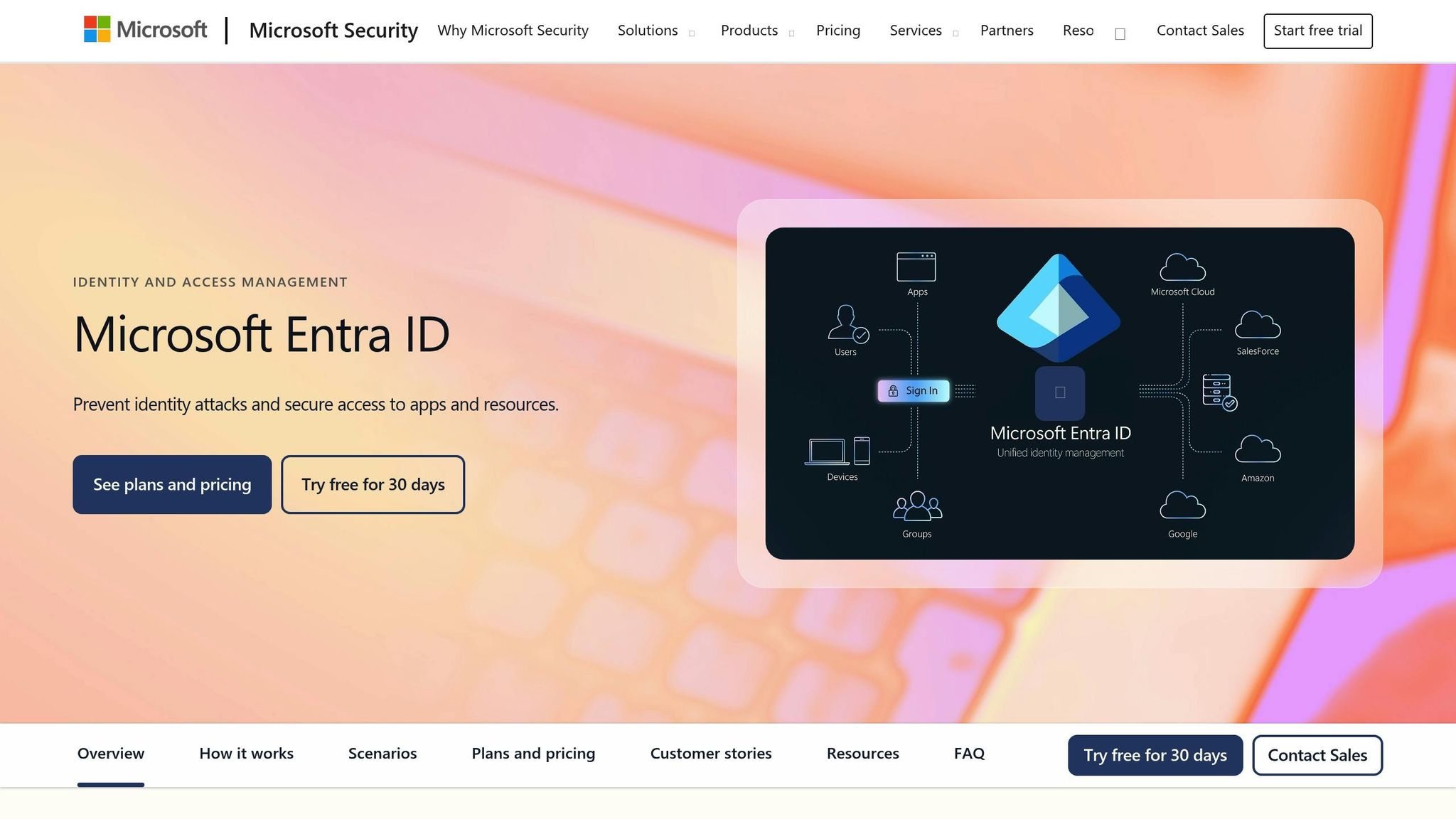
Azure AD misconfigurations often boil down to three main problems: granting too many permissions, skipping thorough policy testing, and mishandling role assignments. These mistakes can snowball, leading to security risks that attackers are quick to exploit, while also disrupting legitimate operations. Let’s break down these errors and their impact on maintaining secure and efficient systems.
Incorrect User Permissions
One of the riskiest missteps is assigning excessive permissions. For instance, IT support accounts or security groups are sometimes given Full Control permissions as a quick fix during troubleshooting. While this may solve immediate access issues, it leaves the door wide open for attackers if those accounts are compromised, violating the principle of least privilege.
A particularly dangerous practice is overusing Global Admin roles. These accounts have unrestricted access, and if compromised - whether through phishing, password reuse, or social engineering - the attacker gains full control of the organisation’s identity infrastructure. This can lead to devastating consequences. Another common oversight is failing to promptly revoke licences and permissions for accounts after employees leave, leaving unnecessary access points open for exploitation.
Directly assigning permissions to individual users instead of using group-based assignments adds to the chaos. This approach makes it harder to track who has access to what and complicates the process of revoking permissions when roles change. Over time, this can lead to unauthorised access, data leaks, and growing security gaps that are difficult to close.
Poorly Configured Conditional Access Policies
Conditional Access policies are a powerful security tool, but they can backfire when not configured properly. A major issue arises when test environments don’t match real-world conditions. Policies that seem fine in testing may fail in production, causing service disruptions and emergency fixes.
Take multi-factor authentication (MFA) as an example. Administrators sometimes create "temporary" MFA exclusions for specific accounts but then forget to remove them, leaving gaps in security. Another common mistake is misconfiguring trusted IP address ranges, such as including guest networks, which can unintentionally bypass MFA.
Default Azure AD settings often add to these challenges. For instance, users can register third-party applications without oversight, passwordless authentication is disabled by default, and older authentication methods like NTLM are still enabled on some ADFS endpoints. These defaults are often left untouched because administrators prioritise getting systems up and running over fine-tuning security settings.
For smaller businesses, these misconfigurations can be especially costly. With limited IT resources, addressing unexpected production issues caused by poorly tested policies can lead to delays, reduced performance, and lost productivity.
Wrong Role Assignments
Misassigned roles are another common pitfall, undermining both security and efficiency. For example, auditors might be given Global Admin or Security Admin roles when Security Reader or Global Reader roles would suffice. This over-assignment of privileges creates unnecessary risks and goes against the principle of least privilege.
Role-based access control (RBAC) is often misused because administrators may lack training in Azure AD role structures. To avoid potential issues, they might assign higher privileges than necessary, which only increases exposure to threats. Similarly, applications registered in Azure AD are sometimes granted more privileges than they need, creating potential backdoors for attackers. In some cases, app owners can misuse these privileges to escalate their own access, leaving vulnerabilities that are hard to detect.
The mismanagement of Azure AD Connect servers is a prime example of the dangers of incorrect role assignments. These servers, which synchronise Azure AD with on-premises Active Directory, require elevated permissions and are classified as Tier 0 resources - the most critical security level. Yet, many organisations fail to restrict administrative access to these servers, neglect security patches, or fail to isolate them on secure network segments. Allowing non-Domain Admin users administrative rights on these servers is a particularly risky mistake.
Password policies also play a role in these vulnerabilities. The default minimum password length in Fine-Grained Password Policies (FGPP) is just 7 characters, which is insufficient to prevent brute-force attacks. While Microsoft recommends a minimum of 8 characters, many organisations fail to update this setting, leaving accounts exposed.
Addressing these misconfigurations early is crucial. A single compromised Global Admin account can lead to backdoor account creation, policy manipulation, and persistent access even after the initial breach is detected. Misconfigurations not only widen the attack surface but also disrupt legitimate users, hampering productivity and creating operational headaches across the organisation.
How to Prevent Azure AD Configuration Errors
Avoiding misconfigurations in Azure AD involves setting up safeguards that catch errors early. Below are some essential practices to help you steer clear of common mistakes.
Set Up a Permissions Review Process
Regularly auditing permissions is a critical step in preventing privilege creep and unauthorised access. Start by compiling a detailed inventory of all users, groups, and applications with elevated privileges. For each, document the business justification and the date the permission was granted. Without this information, it’s tough to know if permissions are still necessary or have simply piled up over time.
Make sure your reviews cover every integrated system. This process not only helps manage privilege creep but also reinforces the security framework you established during the initial Azure AD setup.
Pay special attention to Global Administrator roles. These accounts hold unrestricted control over your Azure AD tenant and potentially your on-premises AD forest. Best practice suggests limiting their use and opting for less privileged roles like Security Reader or Global Reader for most administrative tasks. For instance, security auditors can perform their duties effectively with Security Reader access, avoiding the risks that come with Global Admin rights.
Don’t overlook registered applications and service principals. Many organisations assign them permissions far beyond what’s necessary for their function, creating potential backdoors if left unchecked. Regular audits can help identify and revoke excessive privileges.
Automated tools can simplify this process by flagging elevated privileges and tracking permission changes. These tools provide an audit trail showing who modified permissions, when, and what was changed - an essential resource for spotting unauthorised changes or accidental errors.
Employee lifecycle management is another area to monitor closely. Ensure that new hires, role changes, and terminations are synchronised between HR systems and identity management. Failing to revoke access promptly after an employee leaves creates unnecessary vulnerabilities.
Test Conditional Access Policies Before Deployment
Conditional Access policies are powerful, but a single misstep can disrupt your operations. The solution? Thorough testing in a safe environment before rolling them out to production.
Use a sandbox tenant with test accounts that mimic real-world user scenarios. This setup allows you to test both legitimate and suspicious access attempts without risking production data or exposing personal information. Avoid using production tenants for experiments, and make it a rule that developers can’t deploy experimental applications or settings to live systems.
Take advantage of Azure AD’s report-only mode for Conditional Access policies. This feature logs what would happen if a policy were enforced, letting you assess its impact without blocking access. It’s a great way to identify potential issues before they affect users.
Always have a rollback plan in place for policy changes. Communicate upcoming changes to users in advance to set expectations around new authentication requirements or compliance checks. This preparation helps minimise confusion and reduce support tickets when policies go live.
Ensure your test environment mirrors production permissions. A policy that works in a simplified test setup might fail in the complexity of your live system.
Apply Role-Based Access Control (RBAC) Correctly
Assigning only the minimum necessary privileges is key to reducing risk. Map organisational roles directly to Azure AD roles. For example, IT helpdesk staff might need User Administrator or Password Administrator roles, while database administrators should have permissions limited to their specific systems.
Treat Azure AD Connect servers as Tier 0 resources. These servers synchronise data between Azure AD and on-premises Active Directory and have elevated permissions, making them prime targets. Restrict administrative access to Domain Admins, apply security patches promptly, and isolate these servers on secure network segments.
For emergencies, create two break-glass accounts. These should be cloud-only accounts using the *.onmicrosoft.com domain and assigned the Global Administrator role. Exclude them from Conditional Access policies and MFA requirements to ensure they’re accessible during crises. However, secure them with strong authentication methods like FIDO2 security keys, and store credentials in a fireproof safe with restricted access. Test these accounts quarterly to ensure they function correctly, but never use them for routine tasks.
Implement RBAC consistently across all Azure services, not just Azure AD. This approach ensures a unified security posture and makes it easier to manage access across your infrastructure.
Review default settings during deployment to align with your organisation’s security policies. Azure AD’s default settings often prioritise convenience over security. For instance, users can register third-party applications by default, passwordless authentication is disabled, and older methods like NTLM may still be enabled on some ADFS endpoints. Adjust these settings as needed instead of leaving them unchanged.
Lastly, enforce multi-factor authentication (MFA) for all users, especially those with Global Administrator roles. Even with Azure AD’s free tier, you can enable MFA using Security Defaults, which automatically require it for all users. For finer control, use Conditional Access policies to require MFA based on factors like unusual sign-in locations, unfamiliar devices, or access to sensitive applications.
Regularly audit MFA exclusions to ensure they’re still justified. Temporary exclusions often become permanent security gaps if forgotten. Don’t let convenience create vulnerabilities.
Azure AD Management Best Practices
Keeping Azure Active Directory (Azure AD) secure and efficient isn’t a one-and-done task - it requires consistent effort and oversight.
Conduct Regular Configuration Audits
Over time, configurations can drift - temporary permissions linger, MFA exclusions stay in place, and unused security groups pile up. These lapses can create vulnerabilities.
To stay ahead, plan regular audits - quarterly or semi-annually works well. During these reviews, focus on key areas like user permissions, role assignments, MFA enforcement, application privileges, Azure AD Connect server security, and password policies. For example, ensure passwords are set to a minimum of 8 characters (not the default 7). Also, avoid giving Full Control permissions to IT support accounts or the EVERYONE group on critical organisational units.
Certain events demand immediate audits. Staff turnover or role changes require swift action to revoke licences and block unauthorised access. Other triggers include security incidents, suspected breaches, structural changes within the organisation, or the deployment of new applications. If monitoring tools flag unusual logon attempts from unrecognised subnets, investigate right away.
Take additional precautions, like renaming and disabling the default built-in administrator account. Apply the "account is sensitive and cannot be delegated" setting for added security. Empty security groups, especially those with privileged access, should also be reviewed and removed if unnecessary. Attackers could exploit these to gain elevated permissions. Additionally, disable the Print Spooler service on domain controllers to mitigate risks tied to unconstrained delegation.
Audit findings should feed into your permissions review process, ensuring you’re continuously improving. This sets the stage for the next step: real-time monitoring.
Use Azure Monitoring Tools
Audits are essential, but they’re not enough on their own. Real-time monitoring tools can catch issues as they happen.
Azure Monitor is your go-to for tracking Azure AD performance and spotting anomalies. By enabling sign-in and audit logs, you can create a detailed record of user activities - who accessed what, when, and from where. This is invaluable for both security investigations and compliance.
Set up alerts for critical events to respond quickly and minimise disruptions. For example, you can configure notifications for multiple failed logon attempts, unusual admin activities, changes to privileged accounts, or Azure Backup failures. Monitoring tools also help you track key performance indicators, prevent potential cloud incidents, and improve overall security.
For organisations syncing on-premises Active Directory with Azure AD, tools like DCDiag can help identify replication issues. Use LDP, ADSIEdit.msc, or attribute editors to verify backup statuses and configurations.
Effective monitoring isn’t just about security - it’s also about compliance. Regulations like GDPR require robust data protection practices, and consistent monitoring helps ensure you’re meeting those standards. Plus, it provides a unified view of your Azure AD environment, bridging gaps between teams like Exchange, AD Admins, and SharePoint administrators.
For more tips on optimising your Azure environment, check out Azure Optimization Tips, Costs & Best Practices.
Invest in Training and Documentation
Azure AD evolves rapidly, with new features and updates rolling out regularly. To keep up, your team needs ongoing training.
Tailor training programmes to suit different roles. Administrators should focus on the principle of least privilege, avoiding overpopulated Global Admin roles, and implementing secure MFA and conditional access policies. They also need to understand how to configure Azure AD Connect servers securely and conduct regular audits. Developers and application owners, on the other hand, should learn about application permissions, avoiding overprivileged apps, and the risks associated with impersonation. IT support staff should be trained to spot security risks and troubleshoot without granting excessive permissions.
Encourage continuous learning by subscribing to Microsoft security advisories, attending webinars, and staying informed about emerging threats. This helps prevent issues like misconfigured test environments.
Documentation is equally critical. Keep detailed records of your organisational unit structure, permission assignments, custom role definitions, password policies, synchronisation rules, conditional access policies, and disaster recovery procedures. Include the reasoning behind each configuration - this helps new team members understand the setup and reduces the risk of accidental misconfigurations. Maintain a change log to track who made changes and when, which can simplify compliance audits and troubleshooting.
Update documentation whenever configurations change. Create runbooks for common tasks to standardise procedures and minimise errors from ad-hoc troubleshooting. A ticketing system for Azure AD-related requests ensures nothing slips through the cracks.
Bring Your Own Device (BYOD) policies add another layer of complexity. Document how your Azure AD setup handles multiple platforms like Windows, iOS, and Android to maintain consistency. Similarly, have clear procedures for managing licences during employee turnover. This ensures licences are recovered promptly, and access is revoked to avoid security gaps or unnecessary costs.
Conclusion
Azure AD serves as the backbone of your organisation's security, but even small missteps in its configuration can lead to significant vulnerabilities. As we've discussed, these errors don't just weaken your security - they can also disrupt operations and productivity.
The good news? These pitfalls are avoidable. Setting up a structured permissions review process can help you spot and stop privilege creep before it turns into a security issue. Testing Conditional Access policies in report-only mode ensures you don’t accidentally block legitimate users. And by adhering to role-based access control, such as assigning roles like Security Reader or Global Reader instead of blanket Global Admin access, you can minimise the impact of a compromised account. These practices highlight the importance of being meticulous in every aspect of Azure AD management.
Regular audits are non-negotiable. Whether you schedule them quarterly or semi-annually, these reviews should focus on critical settings and potential vulnerabilities attackers could exploit for privilege escalation.
Real-time monitoring is another essential layer of defence. Tools like Azure Monitor help track performance and detect anomalies, while sign-in and audit logs provide detailed records of user activity. Setting up alerts for critical events - such as multiple failed logins, unusual admin actions, or changes to privileged accounts - allows you to respond swiftly. This proactive stance not only strengthens security but also helps you comply with regulations like GDPR, which require robust data protection measures.
However, technology alone isn’t enough. Your team’s expertise plays a crucial role. Azure AD evolves quickly, making ongoing training vital. Administrators need to master the principle of least privilege, developers must avoid creating overprivileged applications, and IT support staff should be equipped to recognise potential risks. Comprehensive documentation - covering everything from organisational unit structures to disaster recovery procedures - reduces the chances of misconfigurations and simplifies onboarding for new team members.
For small and medium-sized businesses with limited IT resources, Azure AD misconfigurations can have an outsized impact on operations. Treating Azure AD as a critical asset that demands constant attention will not only enhance your organisation's security but also ensure smooth day-to-day operations. Regular audits, vigilant monitoring, and continuous training are your best tools for achieving this balance.
FAQs
What are the best ways to review Azure AD permissions and roles to minimise security risks?
Regularly reviewing and refining permissions and roles in Azure Active Directory (AD) is a critical step in keeping your organisation's environment secure. Start by pinpointing and eliminating unnecessary or excessive permissions - broad access rights can leave your systems vulnerable to potential risks. Azure AD's Access Reviews is a powerful tool to help you ensure users only have access to what they truly need.
Incorporating the principle of least privilege is equally important. Assign roles that provide just the right amount of access needed for specific tasks - nothing more. Keep an eye on role assignments, and take advantage of Azure AD's reporting tools to monitor changes and identify unusual activity. For small and medium-sized businesses growing within Azure, such practices not only strengthen security but also streamline resource and cost management.
How can I test Conditional Access policies in Azure AD to avoid disruptions when deploying them?
To make sure Conditional Access policies are tested thoroughly and to prevent any disruptions, begin by using the report-only mode. This mode lets you simulate how the policy would work without actually enforcing it. It’s a great way to see its potential impact on users and applications. By checking the logs, you can pinpoint any unexpected behaviours or access issues before moving forward.
You might also want to test the policies with a small user group or a single department first. This phased rollout makes it easier to spot and fix any problems early on, reducing the risk of widespread disruption. Once you’re certain the policy is functioning as planned, you can confidently apply it to all the necessary users.
What are the best practices for managing role-based access control (RBAC) in Azure AD while following the principle of least privilege?
To manage RBAC in Azure AD effectively while sticking to the principle of least privilege, it's essential to assign users only the permissions they need for their specific tasks. Avoid assigning broad roles like Global Administrator unless it's absolutely unavoidable. Instead, make use of the built-in roles that are designed to match particular job responsibilities more closely.
It's also a good idea to regularly review and adjust role assignments. This ensures permissions stay relevant as users' roles evolve or organisational requirements shift. Access reviews can help identify and remove permissions that are no longer needed. For cases where elevated access is temporarily necessary, tools like Privileged Identity Management (PIM) can be used. PIM allows for time-limited, just-in-time access, reducing the risk of unnecessary exposure and boosting overall security in your Azure setup.